Saturday, June 16, 2018

How to Speed up Safari on My iPad, iPhone, or iPod touch?


How to Speed up Safari on My iPad, iPhone, or iPod touch?
1. Clear the History


Too much history can clutter your Safari browser. Doing something as simple as clearing this history can have a significant boost on the browser speed. Clearing your browser history is not complicated at all. All you have to do is visit your Settings, select Safari, click on Clear History and Website Data and then confirm that you want to clear history and data in the pop-up that shows up.


2. Disable JavaScript


Your Safari may have a lagging issue simply because JavaScript is enabled. To disable JavaScript in Safari, you need to visit your Settings and tap on Safari. Scroll down to the very bottom and click on Advanced. Finally, Toggle the JavaScript off. Note that there is a downside to disabling JavaScript. The downside is that some of the advanced features that need JavaScript on websites to function may not work.


3. If the Background App Refresh is Enabled, Disable it


This tip will not only have the benefit of ensuring that your Safari is not slow but it will also help you save plenty of battery. To disable the Background App Refresh, visit your Settings, tap on General, and then on Background App Refresh. Finally, toggle the Background App Refresh off.


4. Disable Automatic Downloads


Another reason as to why Safari is so slow on your iOS hand-held device may be because Automatic Downloads is enabled. To fix this, you have to disable these downloads. To do this, you need to visit the device Settings, tap on iTunes and App Stores. Simply toggle off the switches under the Automatic Downloads.Sponsor Ads:

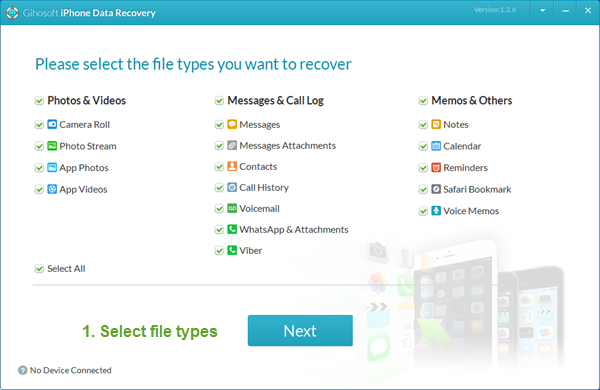
Gihosoft iPhone Data Recovery is a professional iPhone Data Recovery software to get back all your lost text message, photo, video, call history, note, contact and more from iPhone/iPad/iPod Touch. It offers a full solution to recover your lost data in different tough situations. Besides recovering data directly from iPhone, iPad and iPod touch, it also allows you to recover data from iCloud and iTunes backup files.


5. Reset the Network Settings


Although resetting your device network settings will force you to reconnect to your Wi-Fi networks, it can help you eliminate the lagging issue in your Safari. To do this, visit your Settings and then tap on General. Scroll down to locate the Reset option. Tap on it and then select Reset Network Settings.


How to Make Safari Faster on Your MacBook Pro/Air?
1. Clear the Cache and Cookies

Safari will store information about the websites you have visited. This is supposed to make things faster. However, after some time, the stored information can contribute to your Safari becoming slow. A perfect way to eliminate this browser-lag is to clear the cache and Cookies.


To clear your cache, click on Safari on the menu bar and select Preferences from the drop-down menu that appears. Select the Develop tab and then tick on the Show Develop Menu. A Develop option will appear on the top menu. Click on it. A drop-down menu will appear. Select Empty Caches from it.


Now that you have cleared your caches, the next step is to show you how to clear cookies on safari. To do this, click on Safari and then select Preferences. Click on Privacy. Click on Manage Website Data. Then select one or more websites. Finally go ahead and click Remove or Remove All.


2. Update the Extensions

Safari will allow you to add functionality to it using plug-in programs. Examples include ad-blockers, password managers, and privacy protection. Keeping your extensions up to date will eliminate lagging. To do this, click on Safari and then select Preferences. Then, click on the Extensions tab. You will see all the extensions installed in the column on your left-hand. You will see a notification if any updates are available. Update all the extensions that need updating.


iPhone Keeps Switching to Silent, How to Fix It

iPhone Keeps Switching to Silent, How to Fix It

1. Adjust Your Sound Settings on iPhone

Head into your Settings app and then select 'Sounds'. Once you're in there, you need to locate the 'Ringer and Alerts' section. If the 'Change with Buttons' tab is showing as green, you can turn it off, which will stop the ringer function from interfering.
turn off change with buttons on iPhone

2. Use Do Not Disturb Function

Bizarrely, you can even restart your iPhone by activating one of the in-built functions – Bold Text. If you go into your settings app, hit 'General', then 'Accessibility', and then turn the 'Bold text' feature on. As soon as you slide the toggle, you'll receive a popup that states it will restart your iPhone – just tap 'Continue' and your phone will restart.Sponsor Ads:
Gihosoft iPhone Data Recovery is a professional iPhone Data Recovery software to get back all your lost text message, photo, video, call history, note, contact and more from iPhone/iPad/iPod Touch. It offers a full solution to recover your lost data in different tough situations. Besides recovering data directly from iPhone, iPad and iPod touch, it also allows you to recover data from iCloud and iTunes backup files.

do not disturb on iPhone

3. Update iOS to Latest, If It's Not

Every time Apple brings out an iOS update, they fill it with a vast array of fixes for common bugs that they've received complaints about. So, you may find that just updating to the latest version of iOS will do the trick to solve iPhone keeps switching to silent. If you're not aware of the best way to update your device, click here.

7 Common Solutions Provided by Apple for iTunes Download Error


7 Common Solutions Provided by Apple for iTunes Download Error


Here are some regular ways that provided by Apple to have a try when you can successfully install your iTunes.
1 Sign in as an Administrator


If you aren’t the only person who uses the computer that you’re on, then you might not be an administrator. As such, you could be unauthorized to install new programs. If this is the case, you need to either sign in as the administrator or find out who is.


If you are not sure you are in an administrator account or not, click here to check.
2 Install the Latest Windows Update


Have you been avoiding those Windows updates? They’re time-consuming but they’re also necessary. Make sure that your Windows version is up to date and if not, update it. You can refer to Windows Update FAQs.


3 Download the Latest iTunes


You may be trying to install an earlier version of iTunes which may be bugged or has known issues. You can simply check for updates for your iTunes.Sponsor Ads:


Gihosoft iPhone Data Recovery is a professional iPhone Data Recovery software to get back all your lost text message, photo, video, call history, note, contact and more from iPhone/iPad/iPod Touch. It offers a full solution to recover your lost data in different tough situations. Besides recovering data directly from iPhone, iPad and iPod touch, it also allows you to recover data from iCloud and iTunes backup files.


How-To: Open iTunes, go to Help > Check for Updates, and click on Update.


4 Repair iTunes


Although not everyone knows this, iTunes actually has a repair tool in its installation file. You need to download iTunes first. Head to this folder and look for “iTunes6464Setup” or “iTunesSetup” file. Right-click on the file, click on “Run as administrator”, and choose the repair option.


5 Remove Previous iTunes Components


Another possibility is that old iTunes files are conflicting with the installation. Try uninstall iTunes and its related components from the previous installation. Then reinstall iTunes.


The screenshot below shows you all the related components of iTunes:


6 Disable Security Programs


While a bit risky, you can disable your firewall and check whether or not it is preventing iTunes from installing properly. Similarly, close any other programs that you think could interfere.


For example, go to "Control Panel > System and Security > Windows Defender Firewall" and select "Turn Windows Defender Firewall on or off".


7 Restart Your PC


Sometimes all you have to do is turn it off and on. After you’ve restarted your PC, try installing iTunes again.If you ever lost or accidentally deleted data from your iOS device, you can use the professional Gihosoft iPhone Data Recovery software to retrieve important data from iPhone, iPad or iPod Touch even without backup.
Jihosoft iPhone Backup Extractor Extract and recover all types of data from iPhone backup files, such as camera roll photos, videos, SMS, contacts, reminders, WhatsApp, and etc.


Top 4 Free Ways to Sync Outlook Contacts with iPhone

Top 4 Free Ways to Sync Outlook Contacts with iPhone


1. Sync Outlook Contacts with iPhone Via Email


You can easily sync your Outlook contacts with iPhone via email. But while this method may be effective, the contacts will not be automatically updated when you make changes to them. That said, here’s how to sync outlook contacts with iPhone via email;


Step 1: In your Outlook account, create .vcf file of all your contacts. You can do this by selecting the contacts and then right-clicking and selecting “Send as a Business Card.” Send this file to your own email address.


Step 2: Open the email in Outlook and save the attached file on your computer like “c:/contacts.”


Step 3: Open command prompt and then enter “c:/contacts” or whatever name you gave the temporary file. Hit enter and then type “copy/a*.vcf c:/contacts and then hit enter again. This will create a copy of the merged .vcf files.


Step 4: Now send this file to your own email address again. And on your iPhone, open the email and open the .vcf file. Tap “Add All Contacts” to sync the contacts.
2. Import Outlook Contacts to iPhone Via iCloud Control Panel


You can also easily sync all the contacts in Outlook to iPhone using iCloud control panel. Here’s how to do that;


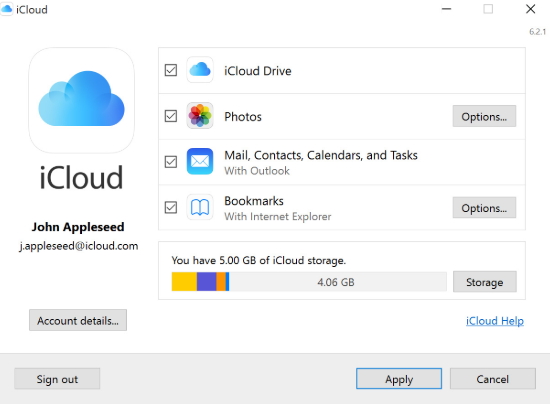
Step 1: Download and install iCloud control panel if you don’t already have it. Open it and then sign in with your iCloud ID and password.


Step 2: In the primary interface, ensure “Contacts, Calendars, & Tasks with Outlook” is selected.


Step 3: Click “Apply” and in a few minutes all the contacts in outlook will be available in iCloud.


Step 4: On your iPhone, go to Settings > iCloud. Sign in and then turn on Contacts & Calendars to complete the process.


3.Transfer Outlook Contacts to iPhone Via iTunes


Ensure that you have the latest version of iTunes installed on your computer and then follow these simple steps to do it;


Step 1: Connect the iPhone to the computer and then launch iTunes.


Step 2: Go to “Devices” on the left sidebar and locate the iPhone.


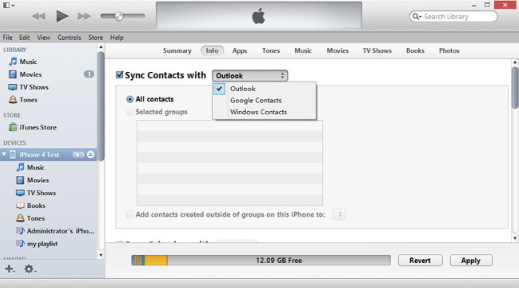
Step 3: Click on the “Info” tab on the upper portion of the screen.


Step 4: Ensure that “Sync Contacts with” is selected and in the drop-down menu select “Outlook.” Here, you can also choose to sync all contacts or sync only a few selected groups. Click “Apply” when you’re happy with your selection.


If Outlook notifies you that iTunes is attempting to access your data, you will need to click “Allow Access” for the process to continue.


4. Sync Outlook with iPhone Using Exchange


If you have Microsoft Exchange on your computer, you can use it to sync iPhone contacts with Outlook. The process is relatively simple. Here’s how to do it;


Step 1: Set up your Outlook account in Exchange.


Step 2: On the iPhone, go to Settings > Mail, Contacts, Calendars > Add Account and choose “Microsoft Exchange.”


Step 3: Sign in using your username and password and then tap “Next”


The iPhone will need to contact the Exchange Server. You may need to enter the server's address.

Gihosoft Total Video Converter is a professional all-in-one video tool that enables you to convert videos and audios into various different formats. You can also download videos from YouTube or other online video sharing sites and convert them easily.
Once you’ve entered the server, you can then choose the kind of data to be synced between the iPhone and Exchange. You can sync, emails, contacts, calendars and notes.If you lost videos from iOS Camerall Roll which are nowhere to download again, you can use Gihosoft iPhone Data Recovery to get back deleted videos from iOS device including iPhone, iPad and iPod Touch.
Image result for gihosoft iphone
Jihosoft iPhone Backup Extractor Extract and recover all types of data from iPhone backup files, such as camera roll photos, videos, SMS, contacts, reminders, WhatsApp, and etc.

[Solution]Fix iTunes Error 11503?


Fix iTunes Error 11503?


Solutions


Here are some other solutions you can try:
1 Select Individual App to Update


iTunes Error 11503 may occur when you try to update all apps with a single click via the option ‘Update All Apps’. So to prevent this error from occurring, you can simply choose individuals apps one-by-one in order to update. This may take relatively more time, but in this way you won’t encounter the error 11503.
2 Clear the Cache of Apps


Clearing the cache of apps on your iDevice sometimes helps solve iTunes error 11503. This is because cached files sometimes delay the app download or update process which leads to this error. So you simply need to clear the app cache to get rid of the problem for good.


Follow these instructions:


Step 1: Open Settings app on your iDevice.


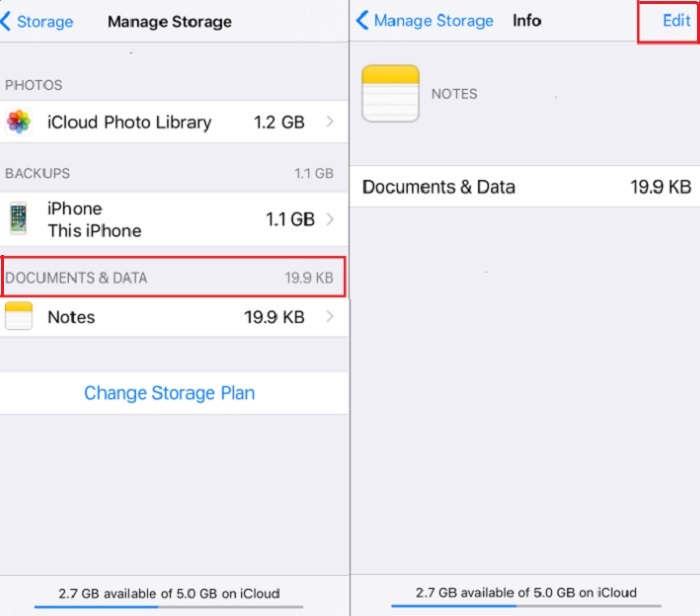
Step 2: Navigate to General > Storage & iCloud Usage > Manage Storage > Documents and Data.


Step 3: Now choose an app that you are trying to update via iTunes, select all the unwanted items shown on the left side of the screen and then tap Delete.


Step 4: Click Edit > Delete All in order to clear app’s data.Gihosoft iPhone Data Recovery is a professional iPhone Data Recovery software to get back all your lost text message, photo, video, call history, note, contact and more from iPhone/iPad/iPod Touch. It offers a full solution to recover your lost data in different tough situations. Besides recovering data directly from iPhone, iPad and iPod touch, it also allows you to recover data from iCloud and iTunes backup files.


3 Delete and Re-Download Apps within iTunes


You can also fix iTunes error 11503 by deleting and re-downloading the apps (that give this error) from your App Library.


Follow these instructions:


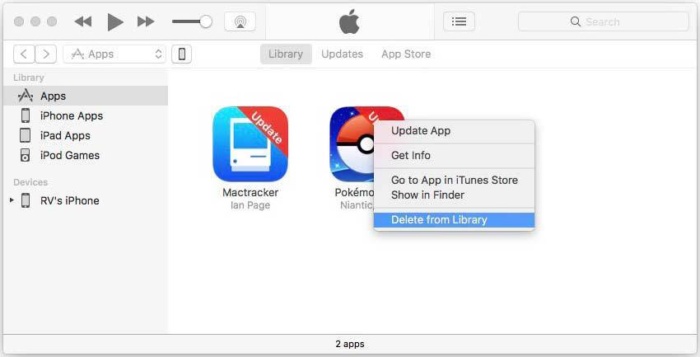
Step 1: Open iTunes and navigate to the App Library.


Step 2: Right-click on the app that gives error 11503 and then click ‘Delete from Library’ option. Click Move to Trash to confirm your action. Alternatively, you can also delete apps from your iTunes Library by navigating to Mobile Applications folder located in iTunes folder on your computer’s hard drive and delete the. ipa files.


Step 3: Once the app is deleted, re-download it via iTunes. The problem should be fixed now and you won’t encounter error 11503 when updating the re-downloaded app.

Why is iTunes So Slow?


Other Common Tips

Following are some other common tips to fix “why is iTunes so slow”:
  1. Delete Unused Playlists: The Smart Playlist feature of iTunes automatically updates the playlist according to your music specification. The unused playlists take a lot of space and also use system resources. You can delete these playlists and speed up iTunes.
  2. Remove Unnecessary Columns: There are many columns under playlist in iTunes. There are some that are unnecessary and occupy space. They also slow down the overall performance of iTunes. So it is recommended that you remove them to improve iTunes’ speed.
  3. Clear iTunes Cache: When you visit different tabs/sections of iTunes and browse your media files, iTunes creates temporary files and stores them in Cache. When cache becomes corrupt, it causes the iTunes to work slowly. You can clear iTunes cache to restore iTunes’ original working speed.
  4. Turn off Automatic Downloads: Automatic download feature of iTunes takes a lot of system resources, hence making iTunes slow. You will need to turn off this feature if you want to improve the efficiency of iTunes.
  5. Disable Auto Sync Feature: This is another feature of iTunes that consumes a lot of processing power and system resources. You can disable this feature to speed up iTunes.
  6. Delete Services that are Not in Use: There are many services of iTunes that run in the background, using system resources. These can slow down the speed of iTunes. It is recommended that you disable/delete these services in a timely manner to prevent iTunes from getting slow.
  7. Use An iTunes Alternative: There are many third-party iTunes alternatives that offer the same functionality and have no issues that you often encounter with iTunes. iMyFone TunesMate is one such software you can use to cover all your iDevice file management needs.Sponsor Ads:
  8. Gihosoft iPhone Data Recovery is a professional iPhone Data Recovery software to get back all your lost text message, photo, video, call history, note, contact and more from iPhone/iPad/iPod Touch. It offers a full solution to recover your lost data in different tough situations. Besides recovering data directly from iPhone, iPad and iPod touch, it also allows you to recover data from iCloud and iTunes backup files.


All about Family Share Apple Music – iOS 12 Included

Have you ever thought of sharing all of your music and more across the range of Apple devices owned by your family members? Well, why wouldn...